
Work with Copilot Chat sessions and workspace
Send questions, manage multiple Copilot Chat sessions, and open the Inspector Copilot workspace for extended work.
Send a message
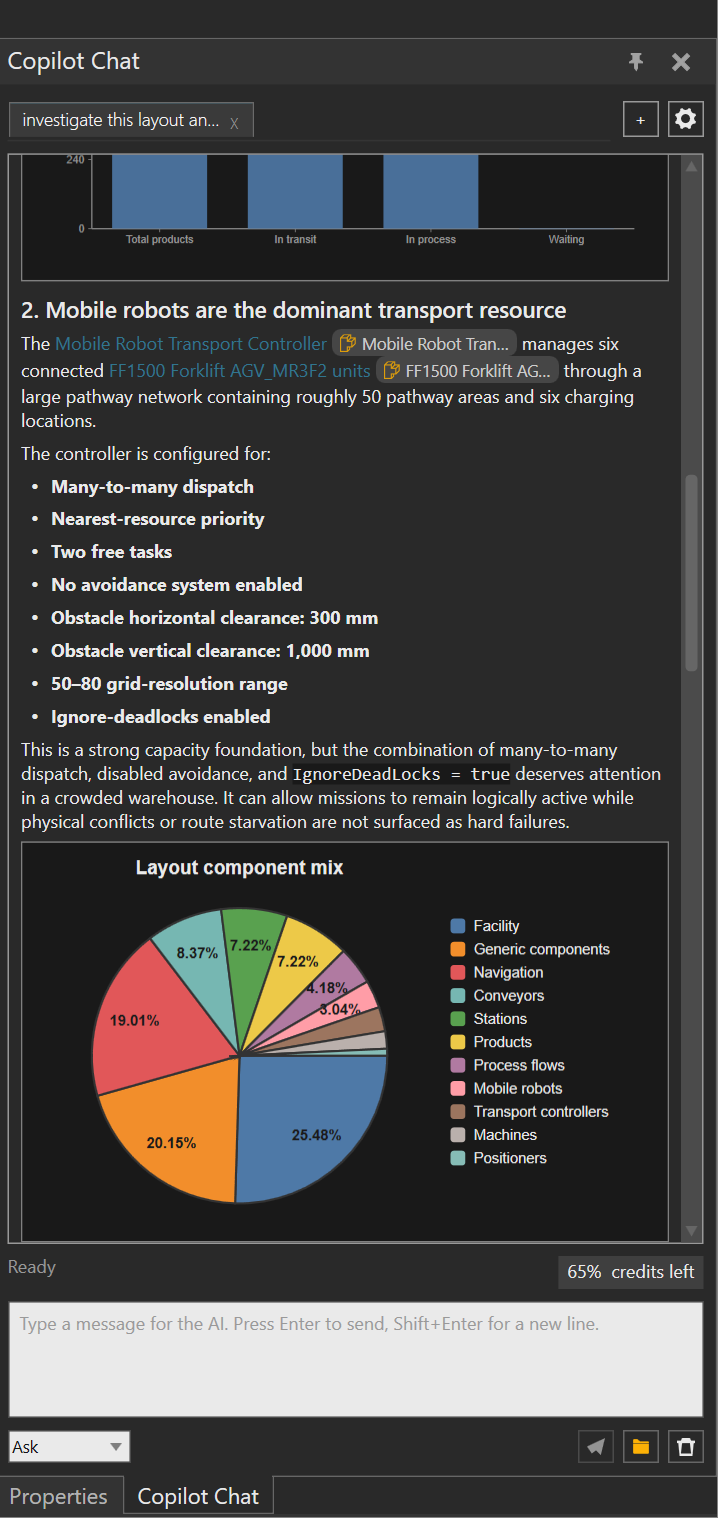
Use the Chat input to ask about the active layout, selected object, or an investigation question. Inspector sends the text to the selected chat session and shows the answer in the timeline.
- Press Enter to send a message.
- Press Shift+Enter to add a new line without sending.
- Select the send button to submit the current input.
- While a response is running, select Cancel response to stop streaming.
The live Ask workflow can use the Inspector MCP connection to inspect the
selected VC object. For example, a question about the selected public-layout
Lifter returned its name and ISimComponent type without changing the layout.
Manage sessions
Each chat is a separate session with its own timeline and mode.
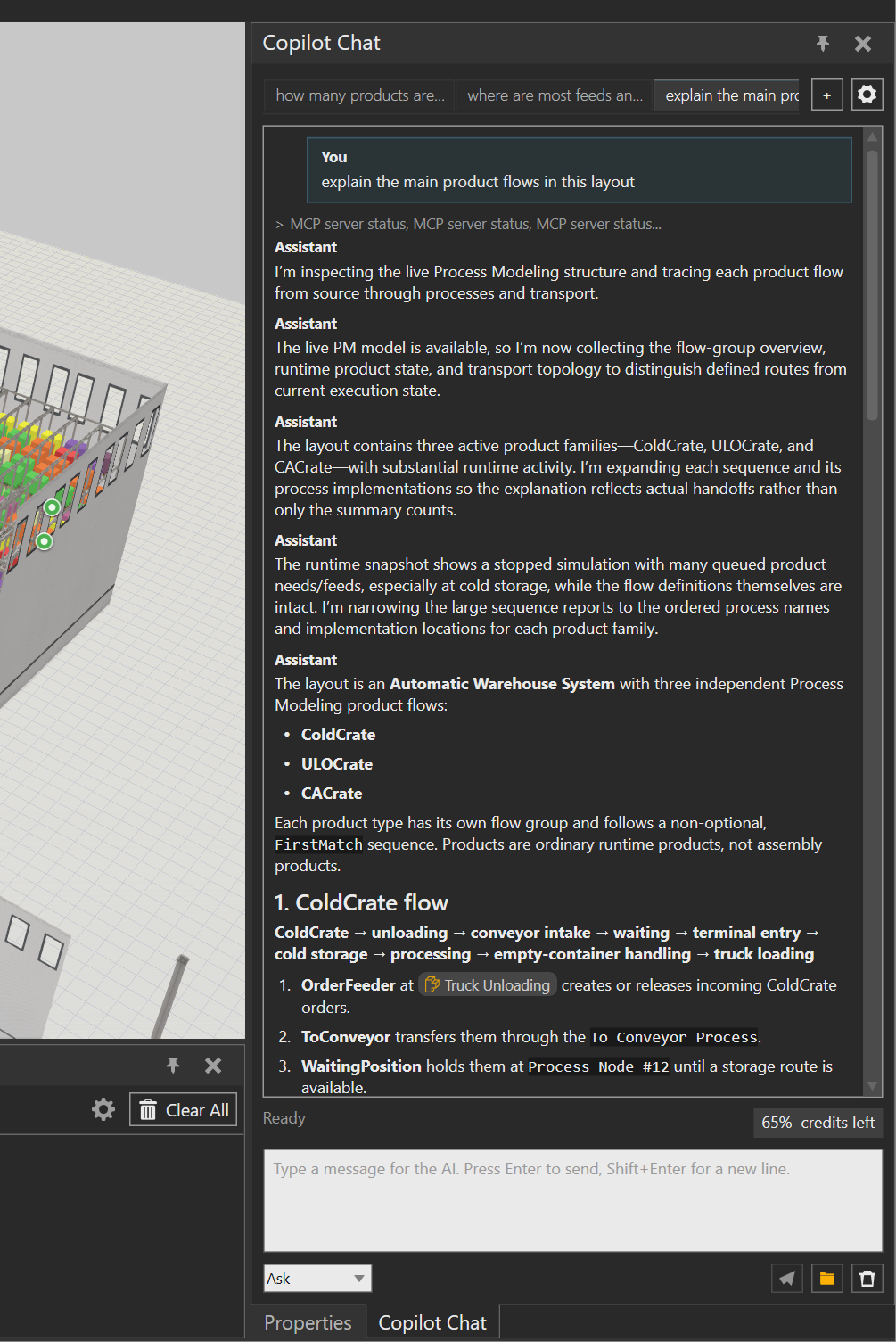
- Select + or New chat to create a session. New sessions start in Ask mode.
- Select a chat tab to switch sessions.
- If tabs overflow, open the Chats list and select the session to activate.
- Select the X on a tab, the footer Close chat button, or Close in the Chats list to remove the selected session.
You can change the selected session's Ask or Edit mode while it is not busy. The mode applies to that session, so keep investigation questions in Ask mode and use Edit only for intentional edit-capable work.
Open the Copilot workspace
Select Open workspace in the welcome screen or the folder button in the Chat footer. Inspector opens the managed Copilot workspace folder in File Explorer; it does not automatically open VS Code.
Open that folder in VS Code when you want to use the prepared workspace for extended work. The local Chat session uses the same managed folder as its working directory, and the installed workspace package supplies the VC-focused workspace configuration. The add-on keeps the workspace under its local application data area and provides a user-visible Copilot workspace shortcut under the Visual Components documents area.
The workspace package is checked and updated by the Inspector installer for supported Inspector versions. Existing user-modified files are preserved when the package is updated; required packaged directories may be refreshed.
Result
The active chat tab shows its own conversation and busy status. Opening the workspace gives you the folder used by Chat so you can continue the work in VS Code without relying on a private or temporary folder.