
Start Copilot Chat
Open Inspector Copilot Chat and choose a safe starting mode for questions about a Visual Components layout.
Open Copilot Chat
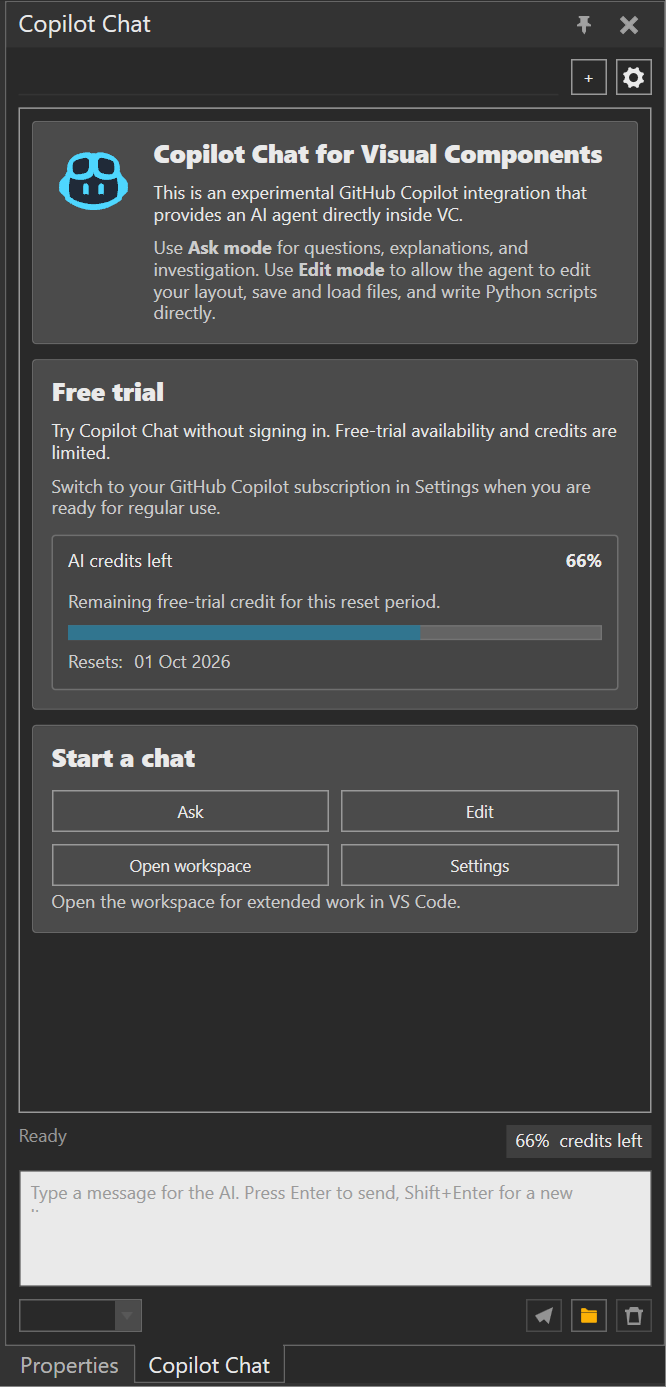
Open the integrated Copilot Chat panel when you want an AI agent to answer questions about the active Visual Components layout. The panel opens on the right side of the VC workspace and provides a welcome screen until you start a chat.
- On the HOME tab, find the Inspector 3.5 group.
- Select Copilot.
- In the welcome screen, select Ask to start an investigation chat.
The live entry point is the Copilot button in the Inspector ribbon group.
Its source command is exposed to UI Automation as
VcTabHomeInspectorGroupInspector.OpenCopilotChat.
Choose a mode
Use the mode that matches the risk of the task:
- Ask starts a chat for questions, explanations, and investigation. Ask mode excludes edit-capable Inspector tools.
- Edit starts a chat that can use edit-capable Inspector tools. The agent may edit the layout, save or load files, and write Python scripts directly. Use this mode only when those actions are intentional.
New chats start in Ask mode. You can change the selected chat's mode later when it is not busy.
Welcome actions
The welcome screen also provides:
- Open workspace to open the Inspector Copilot workspace folder in File Explorer.
- Settings to choose the provider and manage authentication or model options.
See Configure Copilot Chat before using a GitHub Copilot subscription, and Work with chats and the Copilot workspace for ongoing sessions.
Result
The Chat panel shows the selected mode, a message input, and a new chat session. Use Ask mode for read-only investigation questions before considering any edit-capable workflow.