
Inspect a layout through MCP
Use Inspector MCP search, node reads, relationships, process data, and viewport evidence to investigate a Visual Components layout.
Investigation pattern
Start broad, keep the returned node IDs and ancestor IDs, then read only the objects that answer the investigation question. This sequence keeps the MCP conversation grounded in the current layout and makes stale-node failures easy to recognize.
Find a target
- Call
vc_sessionto record the current session and validate any cached node IDs. - Call
vc_searchwith a case-insensitive regular expression when the target is known by name or text. Use a preset such ascomponents,processModeling,interfaces, orpropertiesto narrow the question. - Call
vc_find_by_typewhen the target is better described by an interface type, component category, or property filter. - Keep
ancestorNodeIdsfrom the result when a later navigation operation needs the object's context.
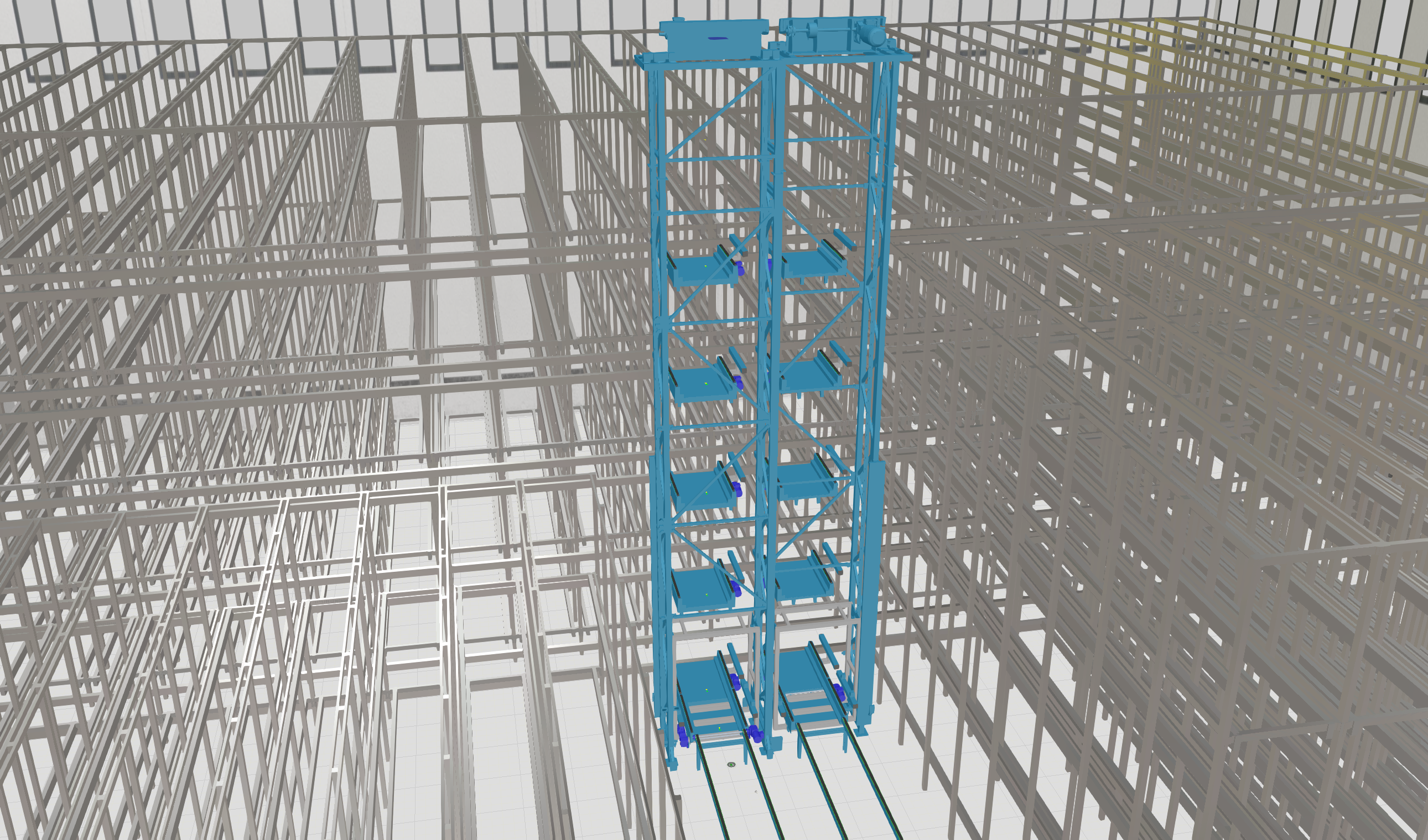
For example, a component search for Lifter in the public warehouse layout
returned the Lifter component as ISimComponent, with node ID n3 and
ancestors n2, world. Node IDs belong to the current MCP session; validate
them again after a layout boundary or when a read reports a stale ID.
Read the evidence
Use the smallest tool that answers the next question:
vc_readreturns names, interface types, properties, state, position, transform, bounds, and searchable text values. It accepts a batch of node IDs and can return expanded ancestors.vc_browsewalks children, behaviors, properties, interfaces, programs, statements, or all available references from a known node. Paginate whenhasMoreis true.vc_relationshipsfollows parent, child, interface, signal, transport, process, and conveyor relationships in a chosen direction.vc_geometry_statisticsranks geometry by size, density, feature-tree complexity, and optional shared-instance impact. An incomplete response supplies a continuation token; continue it before interpreting rankings.vc_messagesfilters the Visual Components message log by level and text.vc_sessionreports simulation state, session start time, registered node count, and node-ID validation results.
The live Lifter read returned its ConveyorSpeed, TotalHeight, world
position, transform, and bounds. Its relationship query identified connected
conveyor interfaces, while vc_process_model reported that it is a conveyor
but not a Process Modeling component.
Investigate process and space
Use these read-focused queries when the question crosses object boundaries:
vc_process_modelprovides Process Modeling overviews, flow-group details, resource participation, process-group references, transport chains, and conveyor network topology.vc_product_flowreports product, need, feed, and matching state. A layout with no active products can validly return zero counts.vc_spatialfinds nodes near a position, intersects a world-bounds region, or checks collision candidates. Coordinates and tolerances are in millimeters.vc_summarizeproduces a brief, standard, or detailed summary for the layout or a node.vc_ecatsearches and reads catalog entries without inserting anything into the active layout.vc_python_scriptslists or reads layout-owned scripts. Reading script text is observational; exporting it is a separate file-writing operation.
Interpret an empty or unavailable result in context. For example, the public
warehouse layout reported no active product-flow matches because its
simulation was stopped at time 0.0; that result does not prove that a
Process Modeling definition is absent.
Confirm the visual result
Use vc_get_selection to check the current VC selection, vc_camera to read
the camera or focus the viewport, and vc_screenshot with
returnMode: "inline" when the client needs model-visible image content.
vc_screenshot does not include UI overlays. vc_user_interface can read
application context and panel state, and can capture the viewport with
overlays when the Direct3DViewportViewModel panel is requested.
These operations can change the selection, camera, focus mode, or visible UI without editing the layout. Treat them as UI-state actions and inspect the result before continuing.
Result checklist
- The session ID is current and the node IDs validate.
- The returned object type and ancestor path match the intended target.
- Properties, geometry, relationships, and process results answer the same investigation question rather than unrelated inventory questions.
- A focused screenshot makes the selected object and its layout context recognizable.
- No action requiring simulation control, script changes, layout edits, or saving was needed for the read-focused investigation.
See Inspector MCP tool access for the full capability and risk boundary. See Connect to the Inspector MCP server when the endpoint is not running.