
Use rich Copilot Chat responses and references
Read formatted Copilot Chat answers and use Visual Components references embedded in responses.
Read formatted answers
Copilot Chat renders assistant responses as formatted Markdown. Look for headings, lists, code, tables, images, and Mermaid diagrams when the answer uses them. Long responses stream into the timeline; the view keeps the latest content in view until you scroll upward.
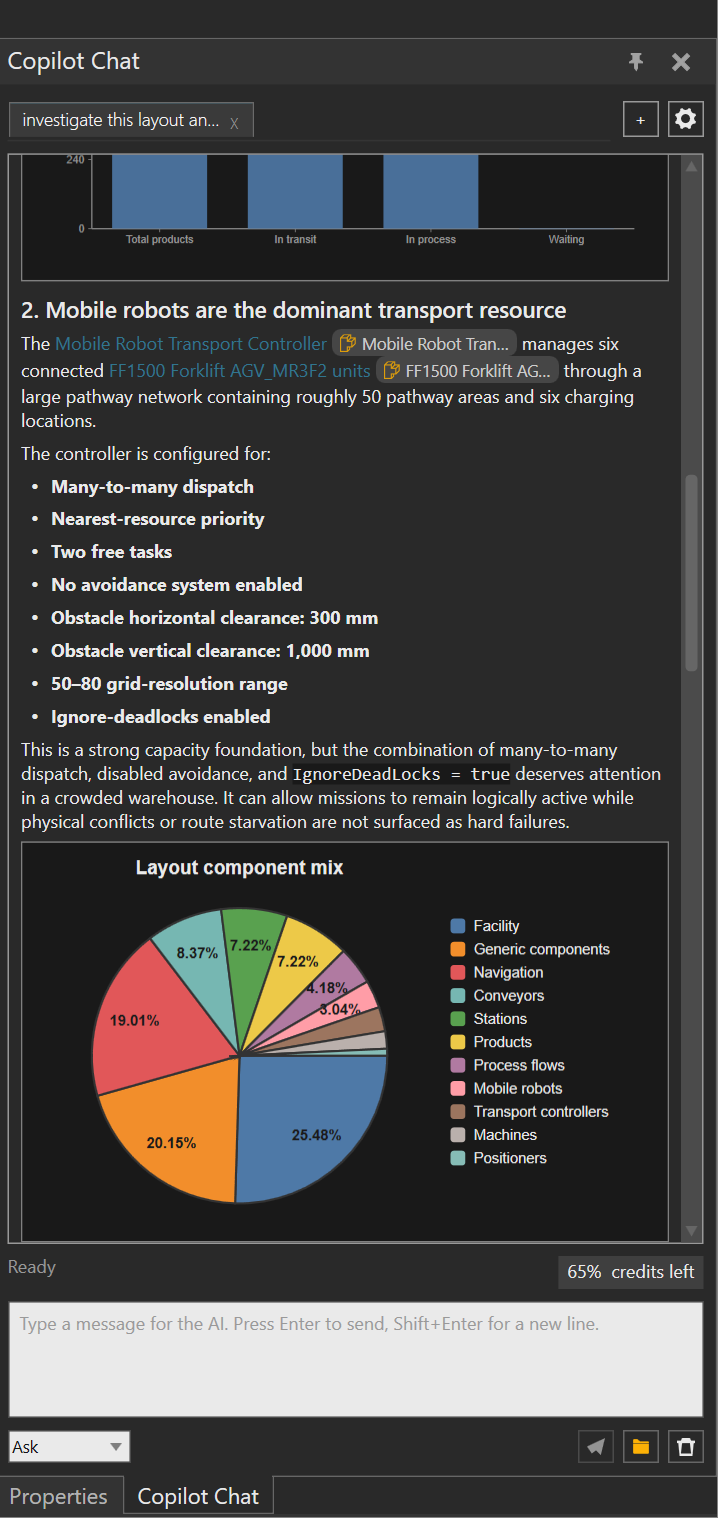
Images in a response can be opened in a larger lightbox. Use the image context menu to Copy as bitmap or Save as PNG... when those actions are useful. If an image cannot be loaded, Chat keeps its alt text as a text fallback.
Respond to agent prompts
Some tasks pause the response and add an interaction to the timeline. Check the status text and the prompt before choosing an action:
- Approve or Reject a permission request. Approval is for the current request, and rejection returns control to the agent without granting it.
- Select one of the offered choices for a follow-up question, or choose the custom-answer field and enter your own response. Select Submit to answer or Cancel to decline the question.
- For a request for additional details, enter or select the requested value and choose Submit. Choose Decline when you do not want to provide it.
The Chat status changes to Waiting for permission or Waiting for user input while an interaction is open, then returns to agent activity after you respond. Do not approve a request unless you understand the action it permits.
Use a Visual Components reference
When Chat mentions a specific VC object, position, or simulation time, the
response can include an interactive reference. The live Ask workflow produced
an inline reference for the selected Lifter object.
Select the reference badge to open its available actions:
- Select makes a referenced object the current VC selection.
- Inspect opens the object in an Inspector panel without changing the current selection or navigating the application.
- Goto navigates to the object, changes the relevant UI context and selection, and focuses the camera. For a position-only reference it focuses the camera on that position.
- Show Overlay focuses the camera and highlights the overlay marker when the reference contains a position.
- Run to Time runs the simulation to a referenced time. If the simulation is already past that time, it resets before running to the target.
- Copy copies a JSON representation of the reference to the clipboard.
Not every action appears for every reference. For example, Inspect requires a valid object, Show Overlay requires a position, and Run to Time requires a simulation time.
Interpret a reference result
- Use Inspect when you want object details while keeping the current VC selection unchanged.
- Use Goto when the next step depends on the object's application context, selection, or camera position.
- Use Show Overlay when a response identifies a location that you need to find in the 3D viewport.
- Use Copy when you need to preserve the reference data for a note or another supported Inspector interaction. Do not paste reference syntax into saved files or Mermaid diagrams; references are session-scoped.
Result
Rich answers remain readable in the Chat timeline, and an embedded reference provides a direct next action instead of requiring you to search for the same object again.