
Review and apply Search & Replace changes
Preview, filter, apply, and undo text replacements from Inspector search results.
Review before changing values
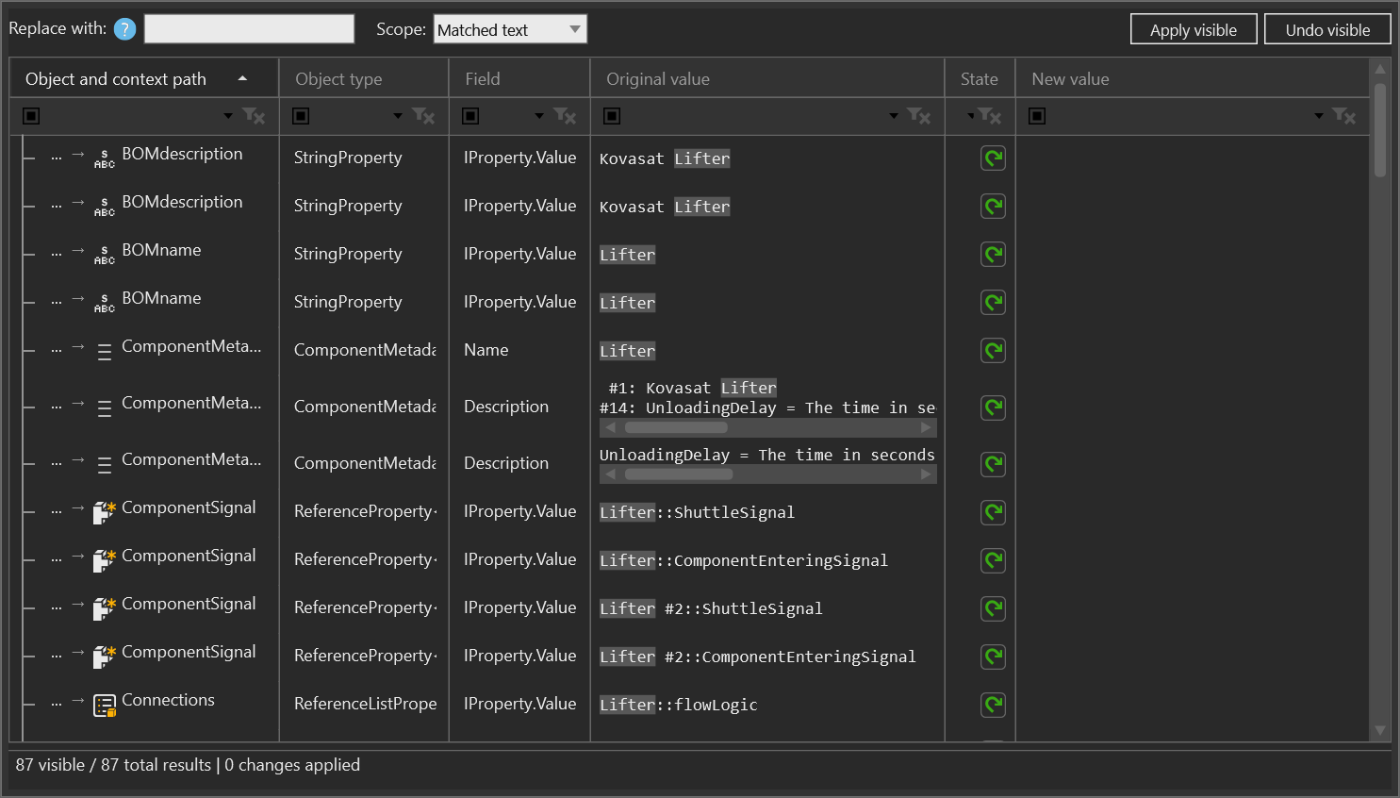
Search & Replace opens from a completed Search result set. It shows the original value and a calculated new value for each replaceable result, so you can review the proposed change before applying it.
Prepare a replacement
- Run a Search and remove or filter out results that should not be changed.
- Select Replace... in Search.
- Enter text in Replace with and choose a Scope:
- Matched text changes only the text matched by the search.
- Whole value replaces the complete property or extracted value.
- Whole line replaces the line containing the match.
- Review Original value, State, and New value in every row that will be changed.
When the original search used RegEx, the .* control enables regular
expression substitutions. With that option enabled, replacement expressions
can use capture groups such as $1 and $2.
Changing the replacement text, scope, or substitution mode recalculates the preview. Treat the preview as the proposed change until an apply action reports success.
Apply only the intended rows
- Select individual rows and use Apply selected from the context menu when the change must be limited to those rows.
- Use Apply visible to apply the preview to all rows still visible after tree or column filtering.
- Use the row state toggle when one row should be included or excluded from a reviewed set.
- Read the status bar. It reports visible results, total results, and the number of changes applied.
Rows whose extractor cannot write text are skipped. A failed write remains visible as a failed state so that it can be investigated rather than being mistaken for a successful replacement.
Undo a reviewed change
Use the row toggle, Undo selected, or Undo visible from the context menu to restore the original text for replacements that were applied from this window. Recheck the state and value after undoing; an Undo failed state means the original value could not be restored through the same supported text writer.
Search & Replace is a layout-changing operation. Keep the result set narrow, review the new-value column, and apply in a deliberate batch. See Choose Inspector tools for the read-only versus changing-tool boundary.