
Record an investigation in Notes
Create session notes, preserve object references, and return to the layout from Inspector Notes.
Keep an investigation legible
Notes hold observations in a temporary Notes panel and can retain references to the objects or context that motivated them. A reference badge gives the next investigator a direct route back to the relevant layout object.
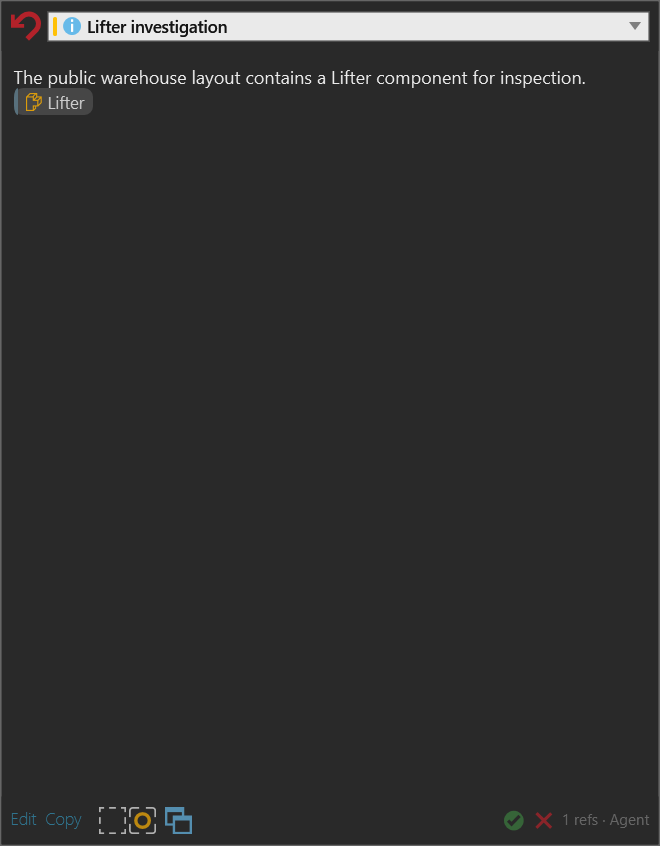
Create and find a note
- Open Notes from the Inspector group on the Visual Components HOME tab. If a Notes panel already exists, the command returns to that panel.
- Select the plus button to create a note, or use Notes in Object Inspector or Create note from selected in Search to create a note with object references.
- In the list, use the search box to filter by note title or content. Choose All, Note, Finding, Warning, Metric, or Todo to filter by type.
- Select a note title to open its expanded view.
Active notes appear before resolved notes. Dismissed notes are hidden from the list. The severity stripe and type icon help distinguish an urgent warning or finding from a general observation.
Edit or close the loop
In the expanded view:
- Select Edit, change the Markdown content, then select Save. Use Cancel to discard an edit in progress.
- Select Copy to copy the note content.
- Use the note selector to switch to another available note, or use the back
button.
Escapealso returns to the list when the note is not being edited. - Select the resolved toggle when the investigation is complete. Select the delete action to remove the note.
- Select Open in separate window when the note must remain visible beside another Inspector surface.
Use an object reference
Select a reference badge to open the actions that apply to that reference:
- Select makes a valid, selectable object the Visual Components selection.
- Inspect opens or updates Object Inspector for an object reference.
- Goto changes the relevant application context or editor when needed, selects the target when appropriate, and focuses the camera. See Go To and navigation behavior.
- Copy preserves the reference representation for another supported Inspector interaction.
Position and simulation-time references can expose focus or run-to-time actions instead. Actions are hidden when the reference data does not support them. A reference to an invalidated runtime object, such as a dynamic product removed by a reset, remains visible as context but its object actions are unavailable.
Result
Use a note when the next useful step depends on an observation, a decision, or the identity of an object. Keep the reference attached to the note so a later reader can select, inspect, or navigate to the same investigation target.