
Process Modeling product gadget
Inspect a Process Modeling product's identity, flow state, assembly context, feed, and transport solution in Object Inspector.
Inspect a Process Modeling product
Use PM product gadget to answer where a Process Modeling product is in its flow, which product type and component it uses, and whether it currently has an assembly, feed, or transport relationship.
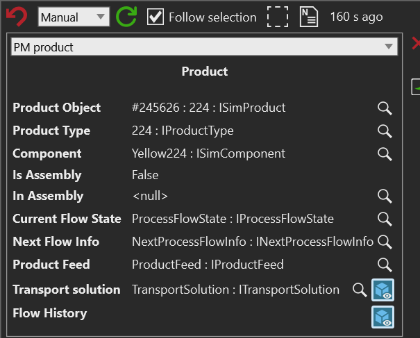
An in-assembly product identifies its containing assembly in In Assembly.
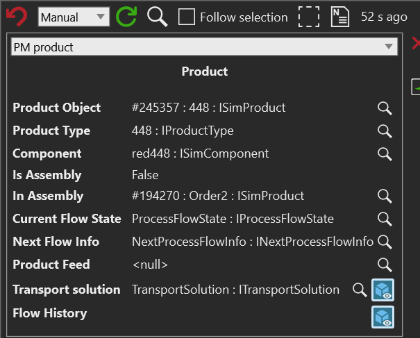
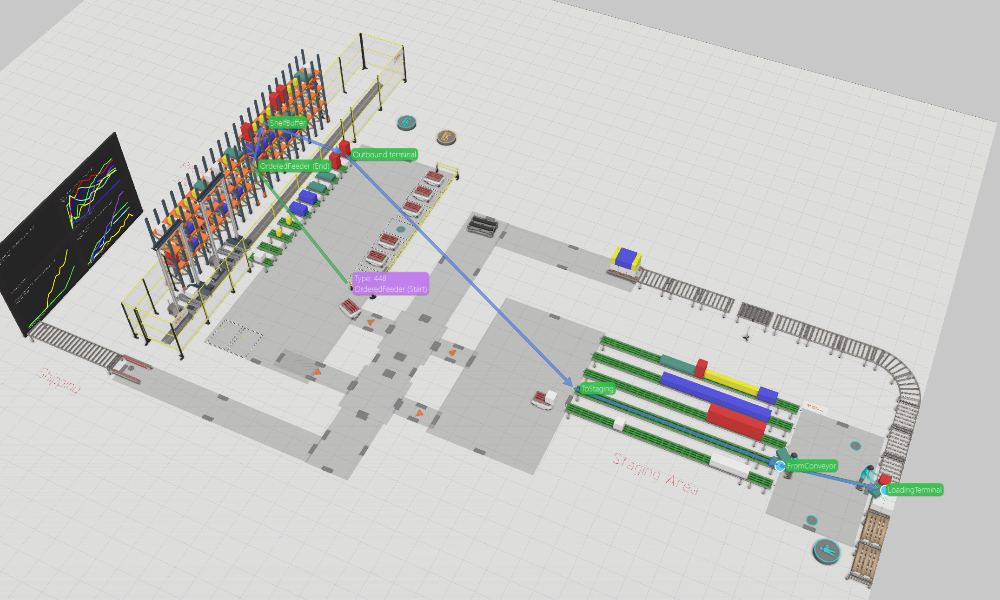
With the transport-solution overlay enabled, the 3D view labels the selected product and its route context.
Before you start
- Select a runtime Process Modeling product, or a component whose
Productrelationship is populated - Run the model far enough to create runtime products when the layout starts without any products
Steps
- Open Inspector for the selected product or component.
- In the gadget selector, select PM product gadget.
- Read Product Object, Product Type, and Component to confirm that Inspector is showing the intended product.
- Check Is Assembly and In Assembly when the question concerns containment or an assembly product.
- Check Current Flow State and Next Flow Info to identify the current process-flow position and the next flow information exposed by the model.
- Check Product Feed and Transport solution to investigate the product's current matching and transport relationships.
- Use the overlay control beside Transport solution to show or hide the current transport links and nodes in 3D. Use the overlay control beside Flow History to show or hide the product's flow-history path.
Interpret the result
- Product Object, Product Type, and Component identify the runtime object and the model objects associated with it.
- Is Assembly is
Truefor an assembly product. In Assembly identifies a containing assembly when one is found; it can be<null>when the product is not in an assembly. - Current Flow State and Next Flow Info are inspectable Process Modeling objects. Use their inspect actions when the state or next step needs more detail than the summary row provides.
- Product Feed is the feed matched to the product, when one exists. A
<null>value means no current feed relationship was returned for the selected product. - Transport solution is the current transport solution, when one exists.
A
<null>value means the selected product has no current transport solution in that state; the transport overlay has nothing to display until a solution is available. - Flow History can visualize recorded flow events and product-type changes for the inspected product. The visualization service ignores visit-count reset records and uses the recorded world positions for the remaining path.
Selection and simulation notes
The gadget can inspect a direct ISimProduct, a component with a non-null
product, or an object selection containing either. With a multi-selection, the
summary rows use the first eligible product while flow-history visualization can
track all eligible products in the selection.
The values shown by the gadget describe the selected product's current
simulation state. A relationship row can be <null> when that relationship is
not available for the selected product at that time; this does not indicate a
missing gadget.
Related tasks
See Inspector gadget system for choosing a gadget. Use Object hierarchy to inspect the selected product's simulation-object context, or Object bounds to check the associated component's dimensions and placement.