
Inspect a selection
Inspect a selected Visual Components layout object and follow later selections in Object Inspector.
Inspect a selected object
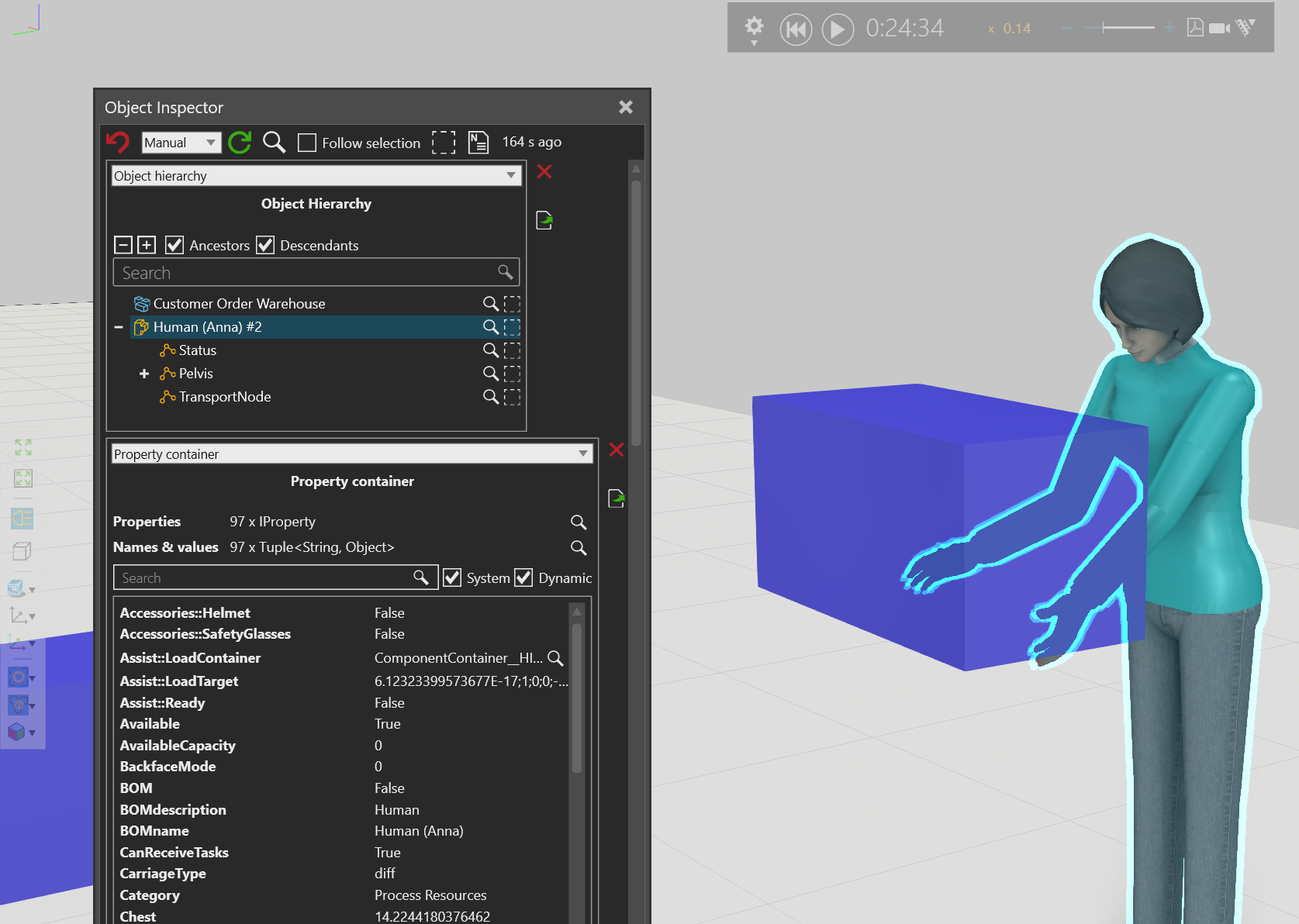
Select one layout object before opening Inspector to begin examining that object immediately. An Object Inspector window follows later selection changes by default, so you can compare objects as you work through a layout.
Before you start
Open a layout and select an object in the 3D view or another Visual Components view that supports selection. Use a single selection when you open Inspector.
Steps
- Select the layout object you want to examine.
- Open Inspector.
- Find the Object Inspector window and review the information that applies to the selected object.
- Select a different object in the layout to inspect that active selection.
Result
The Object Inspector window begins with the object that was selected when you opened it. It updates to inspect the current selection while automatic selection inspection remains enabled.
Hold an inspection reference
Clear Follow selection when you need to keep the current inspected object visible while selecting other objects in the layout. Use the magnifying-glass button to inspect the current VC selection when you are ready to switch the reference, or use the history controls to return to an earlier inspected object.
See Compare inspected objects for the complete investigation sequence.
Related tasks
See Object Inspector overview to continue your investigation. See Choose Inspector tools to decide whether a gadget, Search, or Search & Replace is appropriate.