
Object hierarchy
View the selected simulation node with its ancestors and descendants in Object Inspector.
View an object hierarchy
Use Object hierarchy to understand where a selected simulation node belongs and what it contains. It can show the full simulation-node hierarchy, including components attached to nodes inside other components.
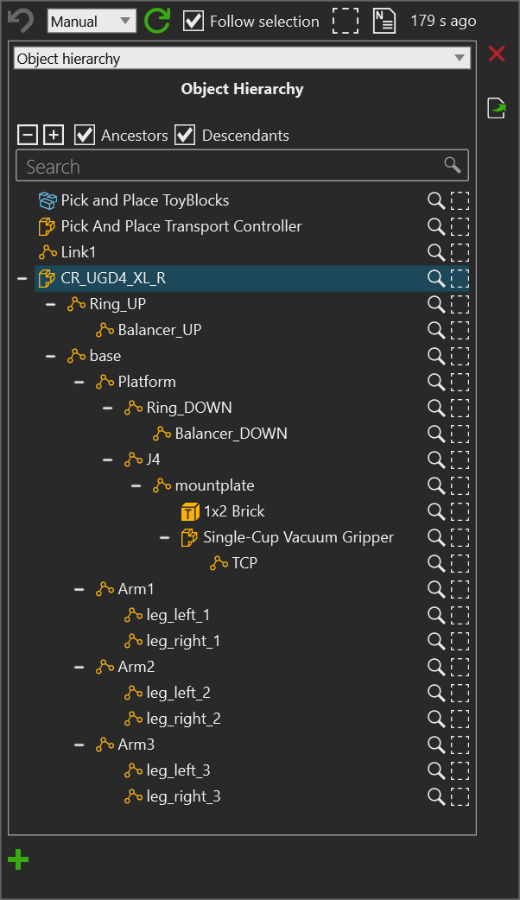
- The capture shows the selected robot, its path to the layout root, and its expanded descendant tree
- The robot tree includes attached components beneath a mount plate, including a brick and a vacuum gripper
Read the selected hierarchy
The tree is anchored to your selection. Ancestors first shows the parent path from the selected node toward the world root. Enable Descendants to add the complete descendant tree beneath that node.
Component-root simulation nodes are displayed as their components. This keeps the relationship visible when a component is attached to an arbitrary node in another component.
For example, a delta robot can have a gripper and a part attached beneath a robot node, while the robot is mounted to a frame in a sub-layout:
World
  Sub-layout
    Frame
      Delta robot component
        Gripper component
          Held part component
In this illustrative model, the frame, robot, gripper, and part may each have their own component roots, but the hierarchy follows their simulation-node parent and child relationships. Select the part to follow its ancestors toward the world; select the robot and enable Descendants to inspect its gripper and the part beneath it.
Before you start
- Select a simulation node
- Select a node with child nodes when you need descendant context
Steps
- Open Inspector for the selected object.
- In the gadget selector, select Object hierarchy.
- Leave Ancestors selected to include the parent chain.
- Select Descendants, then use the expand control to reveal the full child tree.
- Enter a name in Search to filter the displayed tree.
Result
- The selected node remains highlighted in the tree
- Ancestors shows the selected node's parent path to the world root
- Descendants adds the selected node's complete child hierarchy
- Use the per-node inspect or select actions to continue the investigation
Related tasks
Use Object bounds to investigate a selected visual object's geometry and placement. See Inspector gadget system to choose other available views.