
Object bounds
View the bounding dimensions, volume, area, and world center of the selected visual object in Object Inspector.
View object bounds
Use Object bounds to check the footprint, height, volume, and location of a selected visual object before investigating its geometry or placement.
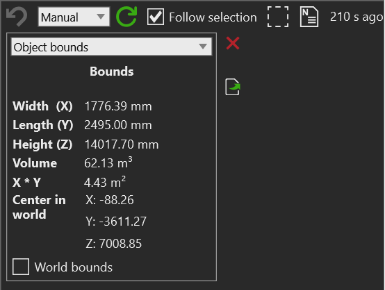
- The local dimensions show the Lifter's modeled bounding box
- Select World bounds to compare the same object against the layout axes
Before you start
- Select a visual object with a bounding box
Steps
- Open Inspector for the selected object.
- In the gadget selector, select Object bounds.
- Inspect Width (X), Length (Y), Height (Z), Volume, X * Y, and Center in world.
- Select World bounds only when you need the bounding box measured against layout axes.
Result
- Dimensions are shown in millimeters, volume in cubic meters, and X * Y area in square meters
- The center is always reported in world coordinates
- A rotated object can have different Width and Length when World bounds is selected because its box is transformed to the layout axes
- Unexpectedly large values can indicate extra geometry; a center far from the expected location can indicate a placement or parent-transform issue
Related tasks
Use Object hierarchy to check parent and child context. See Inspector gadget system to choose other available views.