
Install Inspector and change the release channel
Install Inspector and select the stable or beta release channel through the user installer settings file.
Install Inspector
Install Inspector with the installer provided for your Visual Components version. Start Visual Components once so the installer can create or load the user settings file, then close Visual Components before editing that file.
Select a release channel
The installer reads ReleaseChannel from the user Installer settings.json
file and uses it when checking for Inspector updates.
- The stable release channel is the default. The default is represented by an
empty or null
ReleaseChannel; the shipped settings file usesnull, which the installer treats as equivalent torelease. - The beta channel is a public release channel. Set
ReleaseChannelto"beta"to use it.
Important: The beta channel may be behind the stable channel outside an active beta. It receives updates only during active beta periods. When a beta is released as stable, switch back to the stable/default setting if you want stable releases.
Follow the release channels
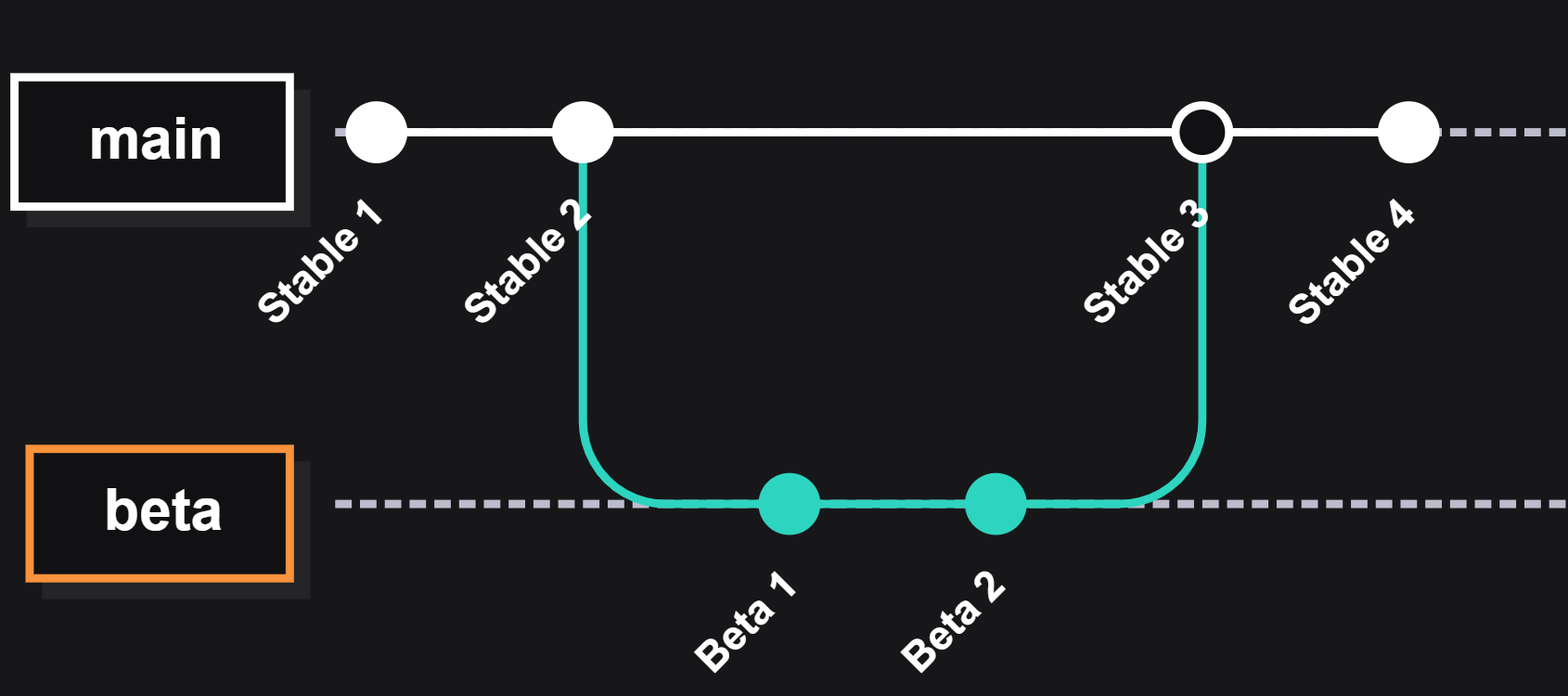
The main branch represents the stable/default channel. The beta branch is
updated only during an active beta, so it can remain behind stable. After a
beta is released as stable, switch ReleaseChannel back to null to receive
later stable releases.
Change the setting
-
Close Visual Components.
-
In File Explorer, open
shell:Personal, then open:Visual Components\5.1\Inspector\Installer settings.jsonThis is the path documented for Visual Components 5.1. For another Visual Components version, use the corresponding product/version folder under your Documents product folder.
-
Set
ReleaseChannelto one of these values:Stable/default:
{
  "ReleaseChannel": null
}
Beta:
{ "ReleaseChannel": "beta" } -
Save
Installer settings.json. -
Start Visual Components again. Inspector reads the setting and checks for an available update on the selected channel.
If the file is not present after installation, start Visual Components once, close it, and repeat these steps.