
Geometry statistics gadget
Rank geometry-heavy nodes, dense geometry, feature-tree complexity, and shared geometry impact in Object Inspector.
Find geometry hotspots
Use Geometry statistics gadget to find geometry that deserves attention in a selected component, node, feature, or selection. Compare the ranked results before deciding whether to inspect a feature tree, reduce geometry, or check shared instances elsewhere in the layout.
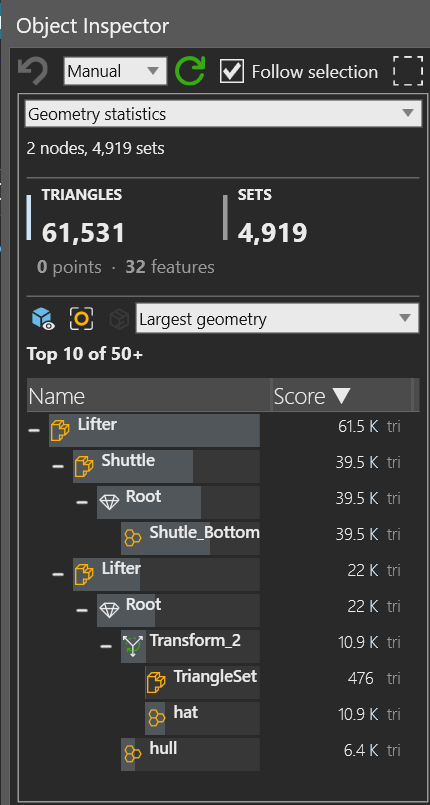
- The summary reports the analyzed nodes, triangles, sets, points, and features
- The result tree connects a high score to the component, node, feature, or geometry set that contributes it
Before you start
- Select a component, node, feature, or a multi-selection with renderable geometry
- Use a layout whose geometry is safe to inspect and whose repeated components are meaningful for a shared-geometry check
Steps
- Open Inspector for the selected object or selection.
- In the gadget selector, select Geometry statistics gadget.
- Wait for the scan to finish. The header shows progress while the scan is running, then reports the analyzed node and geometry-set counts.
- Read TRIANGLES, SETS, and the points and features summary before interpreting an individual rank.
- Choose a view that matches the investigation question:
- Choose Largest geometry to rank total selected geometry burden.
- Choose Dense geometry to find geometry concentrated inside a small world-bound proxy. The score uses area or volume depending on the available bounds.
- Choose Feature trees to find hosts with higher feature-complexity estimates.
- Choose Shared geometry to rank total geometry burden across world instances of a shared definition.
- Expand the result tree and hover a row to inspect its triangles, sets, points, inclusive and self render burden, bounds, density basis, and available hierarchy or shared-definition details.
- Select one or more rows, then use the actions below the tree to go to the result, open it in another Inspector, select it in 3D, or toggle its highlight.
Interpret the result
- The score column is view-specific. In the geometry views it is displayed in triangles; dense geometry uses
/ m2for an area proxy or/ Lfor a volume basis, and feature trees use a complexity estimate without a physical unit. - The gadget initially shows the top 10 results and computes up to 50 results for the selected view. A
+after the count indicates that more computed results are available. - Totals describe the analyzed selection even when the visible ranking is capped. Use the totals for overall burden and the result tree to locate contributors.
- A
No boundsscore in Dense geometry means the item has no usable world bounds for a density comparison. Investigate the item or its geometry definition before comparing its rank with bounded items. - Shared geometry can expose how many instances use a definition in the selection and in the world, including instances outside the selection when they are discovered. A large world burden with many outside instances points to a definition-level optimization rather than a single-node change.
Visual investigation actions
Use the three controls above the result count when the ranking needs spatial confirmation:
- Show the visible worst results in the 3D overlay.
- Focus the view on nodes behind the visible worst results.
- Switch the current rendering view to wireframe while inspecting geometry concentration.
These actions affect the current selection, highlight, focus, overlay, or rendering view. Refreshing the gadget or closing it restores the temporary focus, wireframe, and overlay state managed by the gadget.
Related tasks
Use Object bounds to compare world dimensions and placement for a ranked result. Use Object hierarchy to understand the parent and child context before changing a component or feature.