
Search a Visual Components layout
Find layout objects, properties, metadata, programs, and other supported content with Inspector Search.
Find layout content
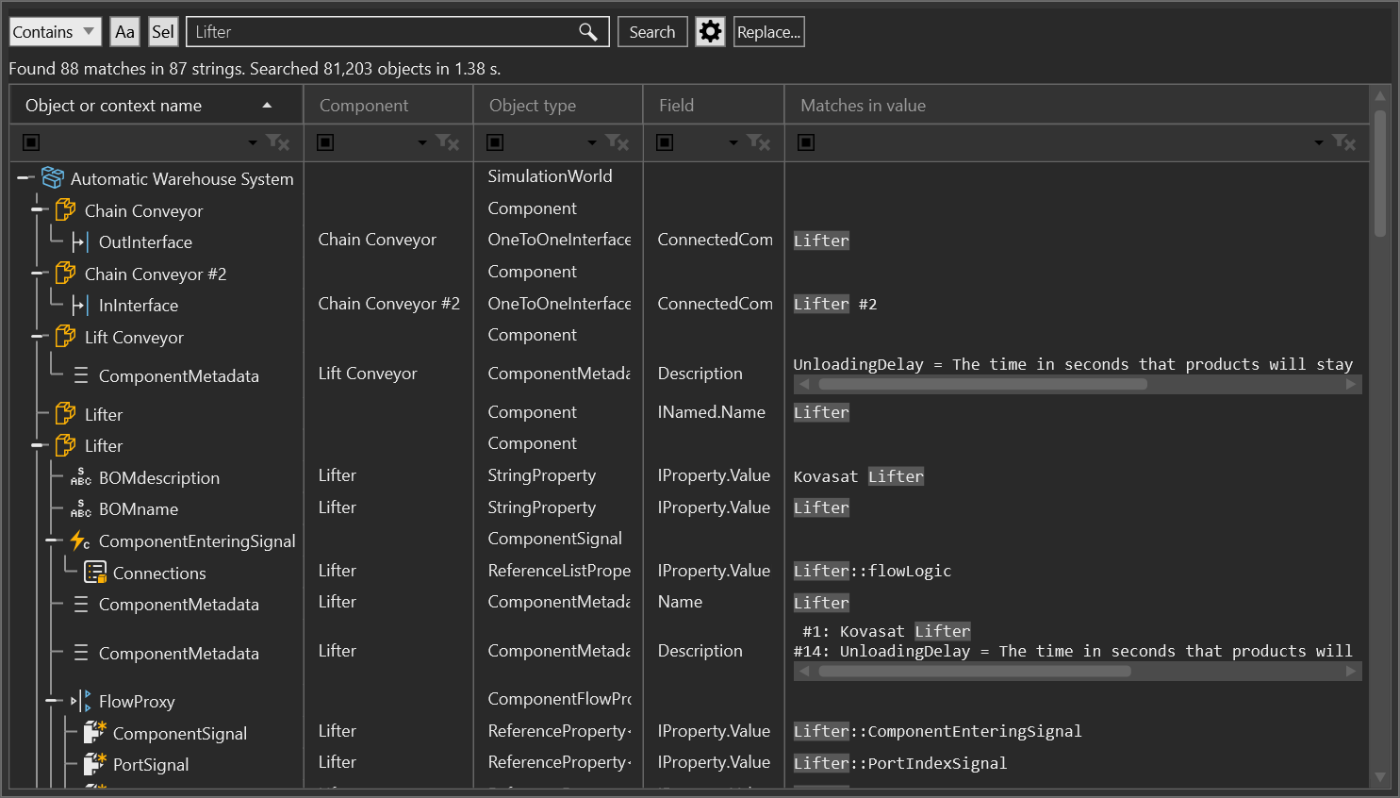
Search returns a hierarchical result set that shows the matching object or context, component, object type, field, and matching value. Use the result rows to decide what to inspect, select, navigate to, or record in Notes.
Search
- Open Search from the Inspector group on the Visual Components HOME
tab, or press
F3. - Choose a matching mode:
- Contains checks for text inside a value and can show more than one match in the same value.
- Wildcards uses
*for any characters and?for one character. The expression matches the whole value and supports\n,\r,\t, and\sescapes. - RegEx evaluates the query as a regular expression.
- Use Aa to enable case-sensitive matching. Use Sel to limit the search to the objects currently selected in Visual Components.
- Enter the query and select Search. Search starts explicitly when you
select the button or press
Enterin the search box.
The status line reports matches, searched objects, and elapsed time. A search can present one object in several rows when different fields or extracted values match.
Narrow or hand off results
Select rows in the result tree, then use the context menu for the next action:
- Use Go to selected or double-click a row to navigate to the result. See Go To and navigation behavior.
- Use Select objects to replace the Visual Components selection with the objects represented by the selected rows.
- Use Inspect selected to send one object or a collection to Object Inspector.
- Use Create note from selected to create a Notes entry containing the selected result references.
- Use Selected rows to clipboard or Selected matches to clipboard to preserve result data outside the tree.
- Use the result-column filters when only visible rows should be handed to Search & Replace. Replace... opens the replacement review window.
The tree also provides Expand all, Collapse all, Expand selected
subtrees, Reset filters and columns, and Repeat search. Press F5 to
repeat the current search. Press Escape while a long search is running to
stop it and keep the results collected so far.
Adjust search coverage
Select the gear button to open Inspector search settings. The window has separate trees for:
- Enabled search traversers, which decide which related objects and areas are visited.
- Enabled text extractors, which decide which names, fields, values, code, metadata, or other supported text is tested.
Clear a traverser or extractor when its content adds noise or cost to the investigation. Use the reset button above either tree to restore that side to its default selection. Changes are used by the next search.
Interpret an unexpected result
- No matches found means the active matcher and enabled coverage found no matching text. Try Contains, broaden the query, or review the settings.
- Search was limited to selection but nothing is selected means Sel is enabled without a Visual Components selection. Select an object or clear Sel before searching again.
- Repeated rows can represent different fields or extracted values, not duplicate layout objects. Use Object or context name, Field, and Matches in value together before deciding which row to hand off.
Search itself only observes the layout. Use Search & Replace when the next step is an intentional text change.